Templates
Templates are reusable task graphs that you can insert into your workspace. They are a great way to save time when you have a set of steps that you do the same way every time, for example when creating
- Sales funnels
- Onboarding flows
- Manufacturing processes
Creating a template
To create a template, you can either start from scratch, or save a set of tasks you already have. Creating a template from existing tasks can be done by selecting a set of tasks in the same workspace and clicking Save as template in the bulk bar. This will open up a new window to edit your template.
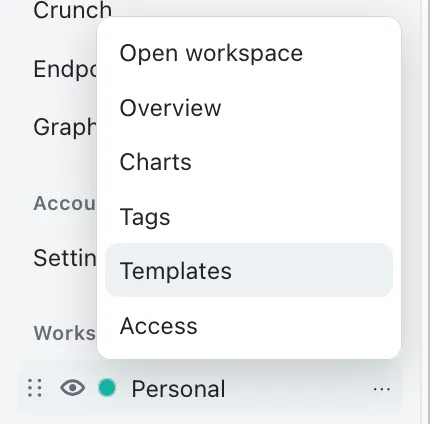
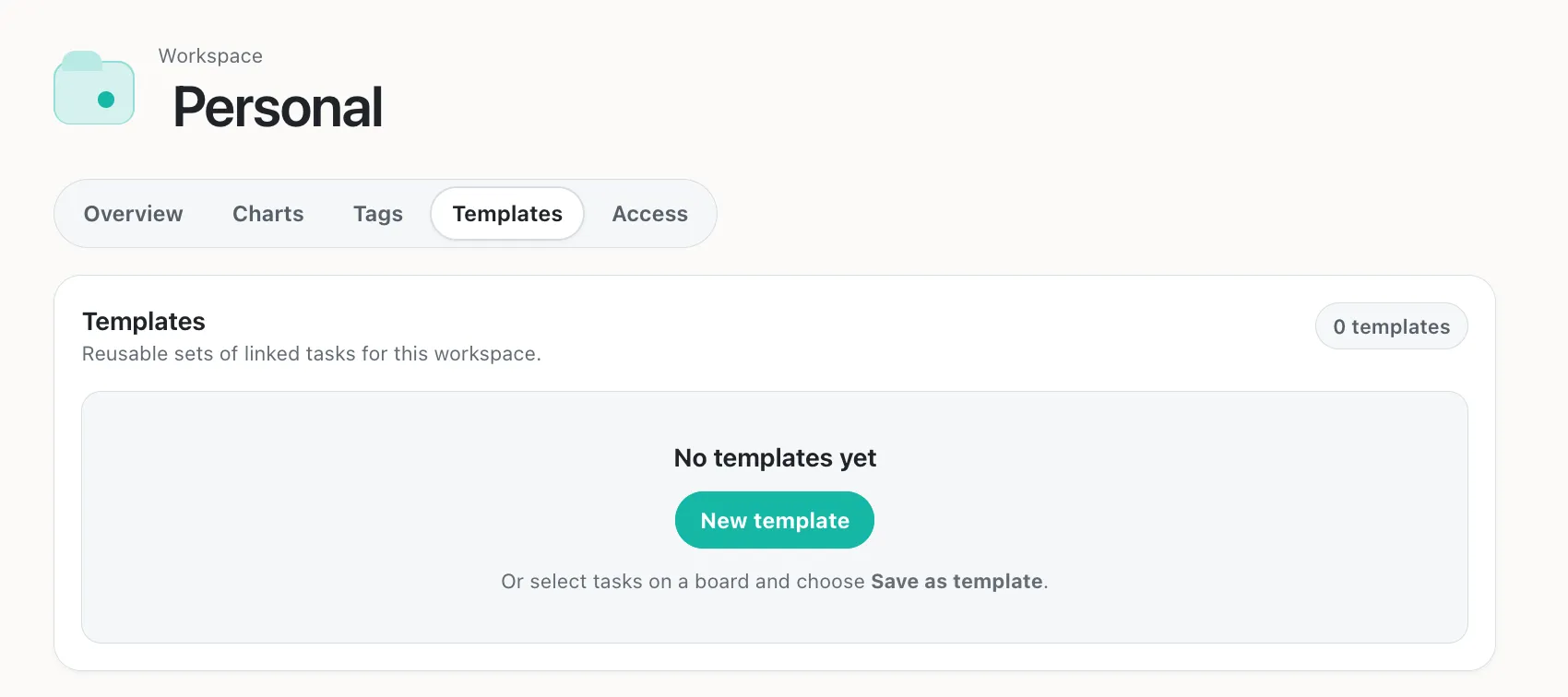
Creating a template from scratch can be done by navigating to the Templates page for a workspace and clicking New template. This will open up a new window to edit your template.
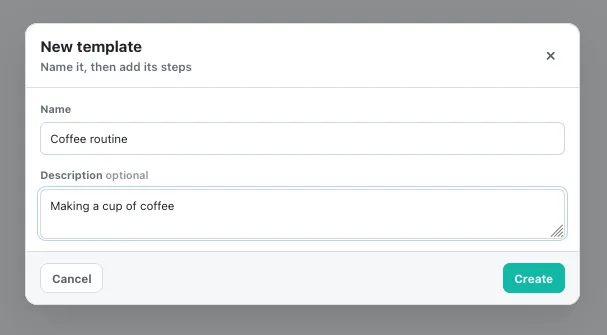
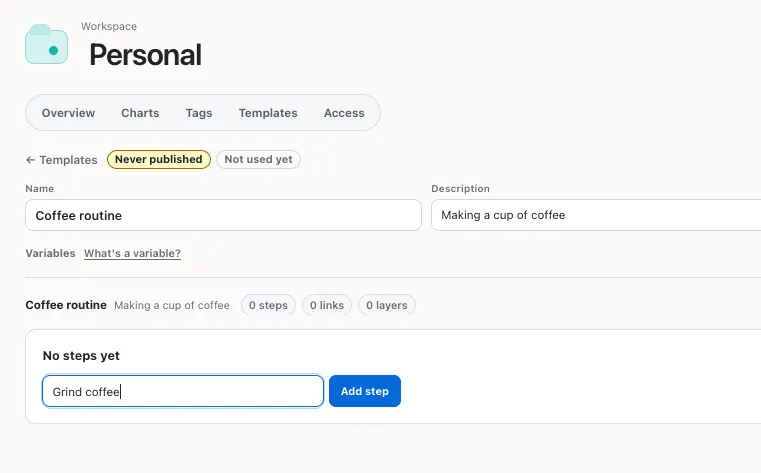
Once you hit New template, you will be guided through the process of creating a template, starting with a name and description:
Editing a template
Choose Graph or List at the top of the full-width template editor. Both views edit the same draft, so switching views keeps your unsaved changes and selected step. The selected view is kept in the URL.
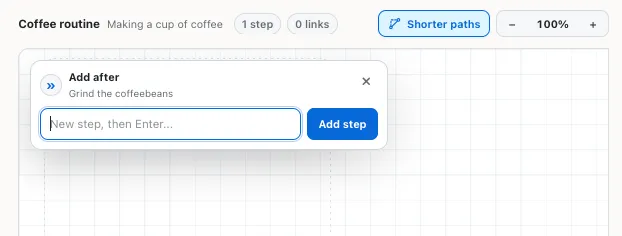
In Graph, drag from the “ports” to create dependencies. In List, steps appear in dependency order; click a step to edit it in the side panel (or a modal on smaller screens). Use Before and After in the step editor to link existing steps, create a linked step, or remove a link. You can also add an unlinked step at the bottom of the list.
Variables
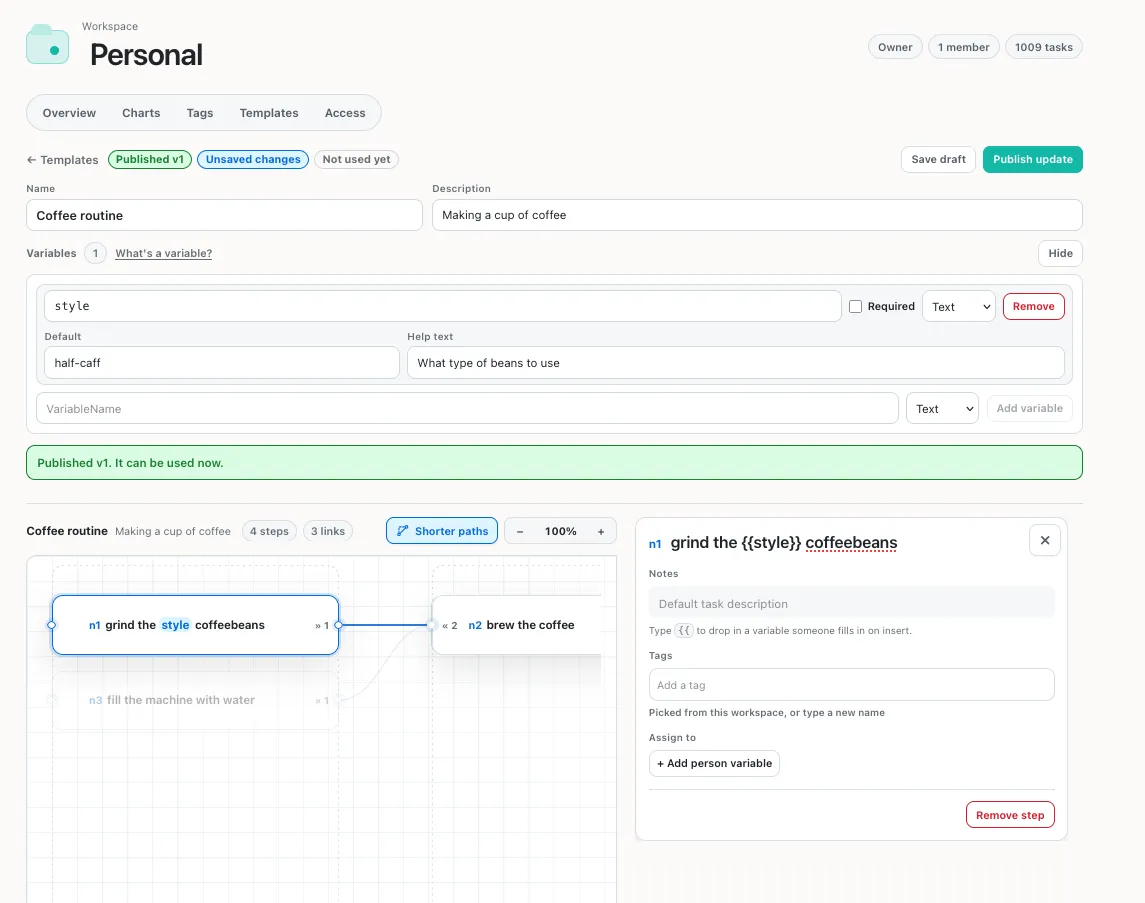
Variables help you create content that can be changed when the tasks are added to your workspace.
For example, if we wanted to create a lunch reimbursement that employees could apply to any restaurant, we might create a variable called restaurantName.
When people use this template, they will fill that value in.
Any time you write {{restaurantName}} in a template, it will be replaced when the tasks are added:
| In the template | In the task it creates |
|---|---|
Order lunch from {{restaurantName}} |
Order lunch from Brewer’s Art |
You can also add “Person” variables: for example, if you wanted to create a code review process template, you might create a Person variable called reviewer and another called author. Users of the template will be prompted to set users for those variables and they work just like regular task assignees.
Using templates
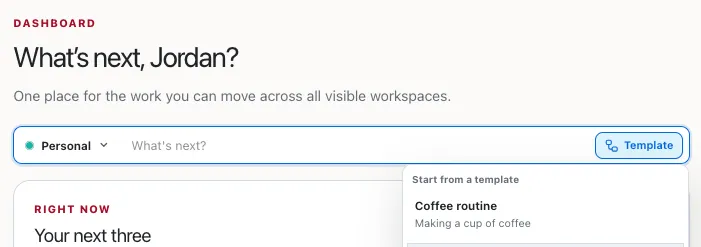
In many places in Tapestry, you can add a template to your workspace by clicking the button. This will open a dialog where you can select a template and fill in any variables it has.